![Google Search Console Tutorial: From Setup to Reading Reports [2026 Complete Guide]](/_next/image?url=%2Fblog%2Fimages%2Fseo-tools%2Fgoogle-search-console-tutorial-01.webp&w=3840&q=75)
How is your site doing on Google? Guessing doesn't count.
Google Search Console (GSC) is Google's free official tool that tells you directly: who found you with which queries, where your pages rank, and which pages never got indexed. No code installation needed — verify ownership and you're in. The problem: most people set it up, glance at the homepage curve, and leave most of the value on the table.
This tutorial starts from zero: setup and verification, sitemap submission, reading the reports, using the data to improve SEO — and ends with the AI search performance report that launched in June 2026.
💡 Have the data but don't know how to turn it into rankings? We turn GSC data into action lists. Free consultation
Key takeaway: Google Search Console is Google's free official tool. Its performance report offers four metrics — clicks, impressions, CTR, average position — across six analysis dimensions (Google official docs, 2026). This tutorial gets you from verification to hands-on reporting in 10 minutes.
What Is Google Search Console, and How Is It Different from GA4?
Google Search Console is Google's official search performance tool. It answers "before the visitor arrives" questions: how often your pages appear in search results, how often they get clicked, where they rank, and whether indexing has problems. Completely free.
GA4 answers "after the visitor arrives" questions: how many people came, what they viewed, how long they stayed, whether they converted.
| Item | Search Console | GA4 |
|---|---|---|
| Scope | Search side (pre-visit) | On-site behavior (post-visit) |
| Core metrics | Impressions, clicks, position | Sessions, engagement, conversions |
| Data source | Google's search systems | Tracking code on your site |
| Setup | Ownership verification only | Requires GA4 tag |
Install both. GSC tells you "how the search market sees you"; GA4 tells you "what visitors did once inside". Missing either one leaves you half-blind.
Why Don't GSC and GA4 Numbers Match?
Everyone asks this. Mismatch is normal, for three main reasons:
- Different definitions: GSC counts "clicks" (on search results); GA4 counts "sessions" (after arrival) — not the same thing to begin with
- Different attribution: a visitor clicks a result then bounces instantly, or a browser blocks the tracking code — GSC logged it, GA4 didn't
- Time zones and sampling: the two reports may use different time zone settings, and GA4 samples at high volumes
Our habit when reconciling for clients: a 10–20% gap is normal — don't obsess over absolute values, just check that both trends move in the same direction. Same direction, trustworthy data.
Also: traffic from AI platforms (visitors clicking through from ChatGPT or Perplexity) is invisible to GSC — it's referral, not search. That belongs to GA4; see AI search traffic analysis.
GSC Setup and Verification
Straight to the steps. The whole flow takes under 10 minutes.
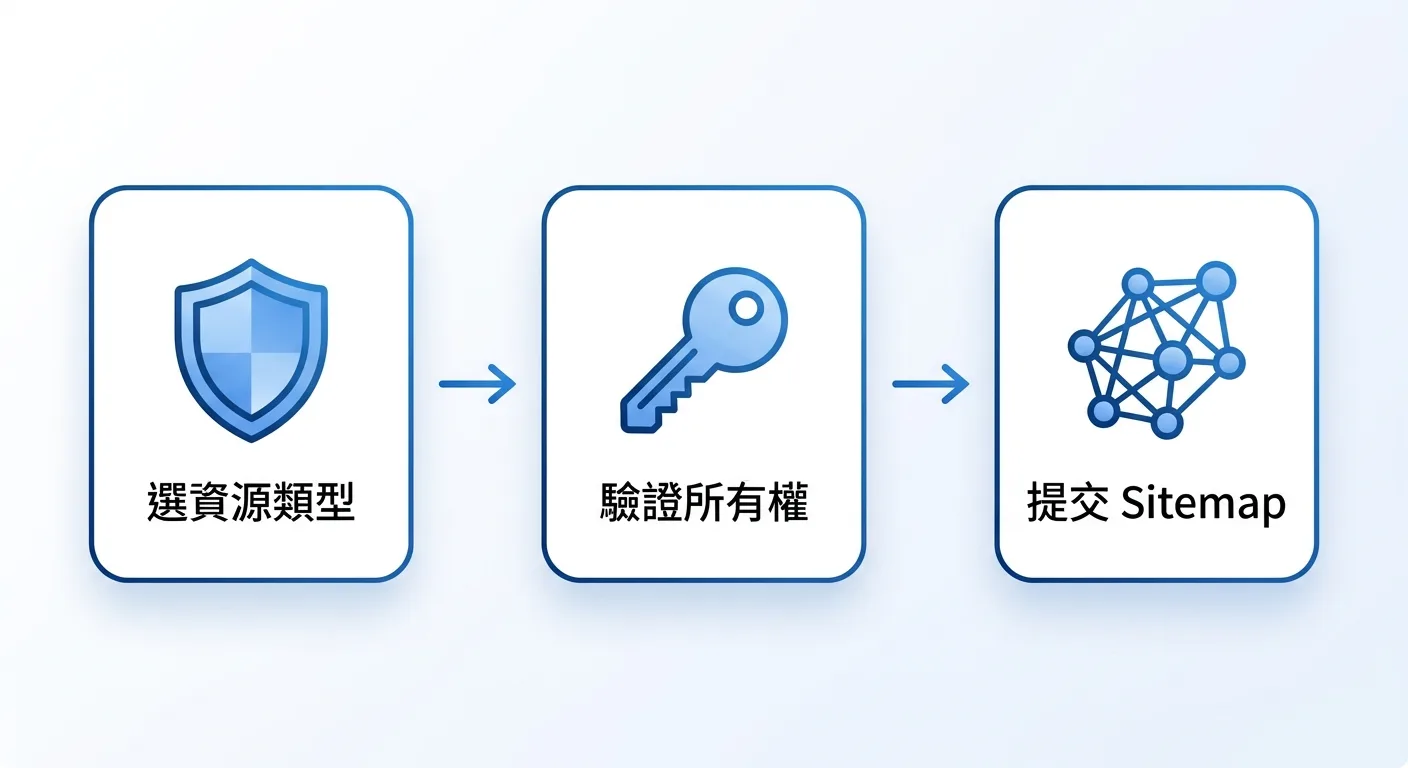
Step 1: Choose a Property Type
When you add a property in Search Console, you get two options:
| Property type | Coverage | Verification |
|---|---|---|
| Domain property | The entire domain (all subdomains, http/https) | DNS record only (Google official, 2026) |
| URL-prefix property | A specific protocol + URL prefix | HTML file, HTML tag, GA, GTM, and more |
Which one? If you can touch DNS, choose the domain property — one setup covers every variant. Only fall back to URL-prefix when DNS is out of your hands.
Step 2: Verify Ownership
Google officially supports 7 verification methods (Google official docs, 2026); the three most common:
- DNS record (the only option for domain properties): add the TXT record Google gives you at your domain registrar, then click verify. DNS propagation can take minutes to hours
- HTML file upload: download the verification file, drop it in your site root. Best when you have server access
- HTML tag: paste the meta tag into
<head>. Best when a WordPress plugin manages your head
Verification only needs to succeed once — but don't delete the record or file afterward. Google re-checks ownership periodically.
Step 3: Submit Your Sitemap
After verification: left menu "Sitemaps" → enter your sitemap URL (usually domain/sitemap.xml) → submit. This hands Google your page list and speeds up indexing.
Not sure where your sitemap is? See What is a sitemap? The SEO guide.
The Five Reports Worth Checking Every Month
GSC has many reports; small businesses really need these five, monthly.
1. Performance Report (the Most Important)
Four metrics: clicks, impressions, CTR, average position; groupable by six dimensions — query, page, country, device, search appearance, date (Google official docs, 2026). Historical data generally goes back about 16 months.
Red flag: impressions up, clicks flat → rankings improved but the title isn't earning clicks. Fix the title first.
2. Page Indexing Report
Which pages are indexed, which excluded, and why. Red flag: an important page sitting in "Crawled — currently not indexed" for over a month.
3. Sitemaps Report
Whether submitted sitemaps were fetched and how many URLs were discovered. Red flag: "Couldn't fetch" status.
4. Links Report
Who links to you (external) and your internal link structure. Red flag: key pages with zero internal links — authority can't flow; fixes in the internal linking guide.
5. Core Web Vitals and HTTPS Reports
The combined "Page Experience" report was retired in 2024; you now read Core Web Vitals and HTTPS as two separate reports (Google's report index). Red flag: a sudden jump in "Poor" mobile URLs.

Red Flags in Your Reports: Fix, or Ignore?
Open the Page Indexing report, see a long list of "Not indexed" and "Not found (404)", and the instinct is to treat every line as a to-do and fix them one by one. Slow down.
Google's John Mueller and Martin Splitt said it plainly on the Search Off The Record podcast: many items flagged as "errors" in Search Console aren't real problems, and the tool was never meant to be a checklist (Search Engine Journal, 2026). A 404 is usually "expected" — retired pages, ended campaigns, and test URLs all return 404, and that's just a site's normal metabolism.
So what should you watch? Patterns, not single rows. A revenue-driving page that suddenly drops into 404 is worth chasing; a batch of URLs that were supposed to disappear returning 404 can be left alone. This also punctures a common myth: an all-green GSC doesn't equal good SEO — all green only means no technical blockers, and rankings still come down to content and links. When we read reports for clients, we always ask one thing first: does this red flag hit a page that makes money? If not, we skip it. (Note: this came from a Google podcast, not an official blog announcement.)
Three Hands-On Workflows That Turn GSC Data into SEO Gains
Tooling is the start. The value is in these three monthly workflows.
Workflow 1: Mine "High-Impression, Low-Click" Keyword Opportunities
Performance report → query dimension → sort by impressions → find high-impression, low-CTR queries.
These queries mean Google is already giving you the stage — the cheapest growth available. And the stage is getting more precious: Jan–Apr 2026 US data shows 68% of Google searches end with zero clicks (Search Engine Journal, 2026), making every willing clicker worth more than before.
Two treatments: for queries ranking 5–15, deepen the page's content; for top-5 rankings with low CTR, rewrite title and description (add year, numbers, benefit).
Is your CTR "low"? Compare against your own site's other queries in the same report — no external benchmark needed. Full keyword strategy in How to optimize keywords.
Workflow 2: Title/Description CTR Iteration
Pick 3–5 target pages → record current CTR → change the title → review in four weeks. Our own iteration habit: change one variable at a time (title or description, not both), or you won't know which change worked.
Workflow 3: Indexing Triage SOP
Page indexing report → check the "not indexed" reason categories → treat accordingly:
- "Crawled — currently not indexed" → thin content or weak internal authority; strengthen content + add internal links
- "Not found (404)" → check whether a 301 redirect is due
- "Blocked by robots.txt" → check for accidental blocking (and review your AI crawler settings while you're there: AI crawler setup guide)
Reports Understood, Content Lagging?
GSC shows you where the opportunities are; capturing them takes content output. AI SEO Hacker uses an AI-driven content system to turn keyword opportunities into ranking articles.
New in 2026: Where Is the AI Search Performance Report?
Since June 2026, the Search and Discover reports include a "Generative AI" category (first rolled out to a subset of sites on June 3, 2026, and available to all websites worldwide since August 31, 2026) showing your content's exposure inside AI Overviews and other generative AI features — the first official report for GEO performance.
Why care? AI Overviews now appear on more than 20% of searches, and when they do, overall CTR drops by nearly 60% (Search Engine Journal, 2026). AI features are redistributing the impressions and clicks you're used to — this report is the window into that redistribution.
How to access it, read its five dimensions, and patch its limits: see the Search Console AI performance report complete guide. For the bigger question of measuring GEO overall, pair it with How to measure GEO performance.
SEO Without a Website: The New Social and Video Platform Report
If your business has no website at all and runs entirely on Instagram and YouTube, this update is worth five minutes.
On July 7, 2026, Google announced on its official blog a new Search Console property type: platform properties, letting content on Instagram, TikTok, X, and YouTube show how it performs in Google Search and Discover (Google Search Central, 2026). The key detail: you can verify without a domain — you don't need to own a website to set it up and track performance.
What does that mean for small businesses? Search Console used to be "a tool for people with websites"; no site meant locked out. Not anymore. A dessert shop that lives on Instagram, a renovation contractor who only posts on YouTube — each can now see how many times their content was searched and clicked, and which video got seen on Google. You don't have to pay to build a site before you can use real data to judge which content actually meets search demand. A website you fully control is still worth investing in for deeper SEO — but at least the starting line moved forward.
Advanced: What Can the Search Console API Do?
Manual report-reading gets tiring at scale. The Search Console API lets you pull data programmatically: automated monthly reports, batch queries across hundreds of pages, piping GSC data into your own dashboards.
Who needs it? Agencies managing many sites, and sites with thousands of pages. Typical small businesses are fine with the web reports — no need to learn to code for this. If you have dev resources, start with the official API docs.

FAQ
How long does Google Search Console verification take?
Depends on the method. HTML file and HTML tag usually verify instantly; DNS verification depends on your registrar's propagation speed — minutes to hours. Google supports 7 verification methods in total (official docs, 2026). Keep the verification record in place afterward; Google re-confirms ownership periodically.
Is Google Search Console completely free?
Yes — completely free, with no paid tier. It's Google's official tool for all site owners, with identical features regardless of site size. Paired with the equally free GA4, it's the most complete free data stack for small businesses; more free tools in free SEO tools we recommend.
Can GSC data serve as SEO KPIs?
Yes — it's among the best sources: impressions, clicks, and average position come straight from Google's own systems with no third-party estimation error. Set KPIs on trends (e.g., quarterly impression growth) rather than absolute values. KPI frameworks in the marketing KPI guide.
Can I use Search Console without GA4?
Yes. GSC only needs ownership verification — no code required. But we recommend both: GSC for the search side, GA4 for on-site behavior — and AI platform referrals are only visible in GA4 (method in AI search traffic analysis).
From Installed to Actually Used
Installing GSC is easy — 10 minutes. What separates people who use GSC from people who merely have it is three habits: check the five reports monthly, run the "high-impression, low-click" mining monthly, and resolve indexing issues the month they appear.
The 2026 variable is AI search — the Generative AI report is live, and traditional and AI search data now sit side by side in one console. The AI report has been available to all websites worldwide since August 31, 2026, so those fluent in GSC today will be the first ones able to iterate.

🎯 Take Action
You have the GSC data; the next step is content that keeps up. AI SEO Hacker offers an AI-driven SEO article service — from keyword opportunity to finished article.
Free consultation | View service plans
Further Reading
- Search Console AI Performance Report: The Complete Guide
- AI Search Traffic Analysis: Tracking ChatGPT and AI Referrals
- How to Measure GEO Performance: AI Search Visibility Metrics
- SEO Tracking Tools We Recommend
- The Complete SEO Data Analysis Guide
![The Complete SEO Tools Guide: Must-Have Software and Hands-On Tutorials [2026]](/_next/image?url=%2Fblog%2Fimages%2Fseo-tools%2Fseo-tools-guide-01.webp&w=3840&q=75)
![AI SEO Tools: Boost Your SEO Workflow with Artificial Intelligence [2026]](/_next/image?url=%2Fblog%2Fimages%2Fseo-tools%2Fai-seo-tools-01.webp&w=3840&q=75)
![Best Free SEO Tools: Boost Your Rankings at Zero Cost [2026]](/_next/image?url=%2Fblog%2Fimages%2Fseo-tools%2Ffree-seo-tools-01.webp&w=3840&q=75)