Have you ever had this experience: you click on a website, wait several seconds while it spins, then hit the back button?
Your visitors do the same thing.
Website speed doesn't just affect user experience — it's also one of the signals Google's ranking systems look at. Slow-loading websites struggle to retain visitors, and all other things being equal, their rankings may suffer.
This guide will teach you how to test your website speed, understand the three Core Web Vitals metrics, and apply 10 practical optimization techniques.
Why Does Website Speed Matter?
Impact on User Experience
Modern users have less patience and higher expectations for speed.
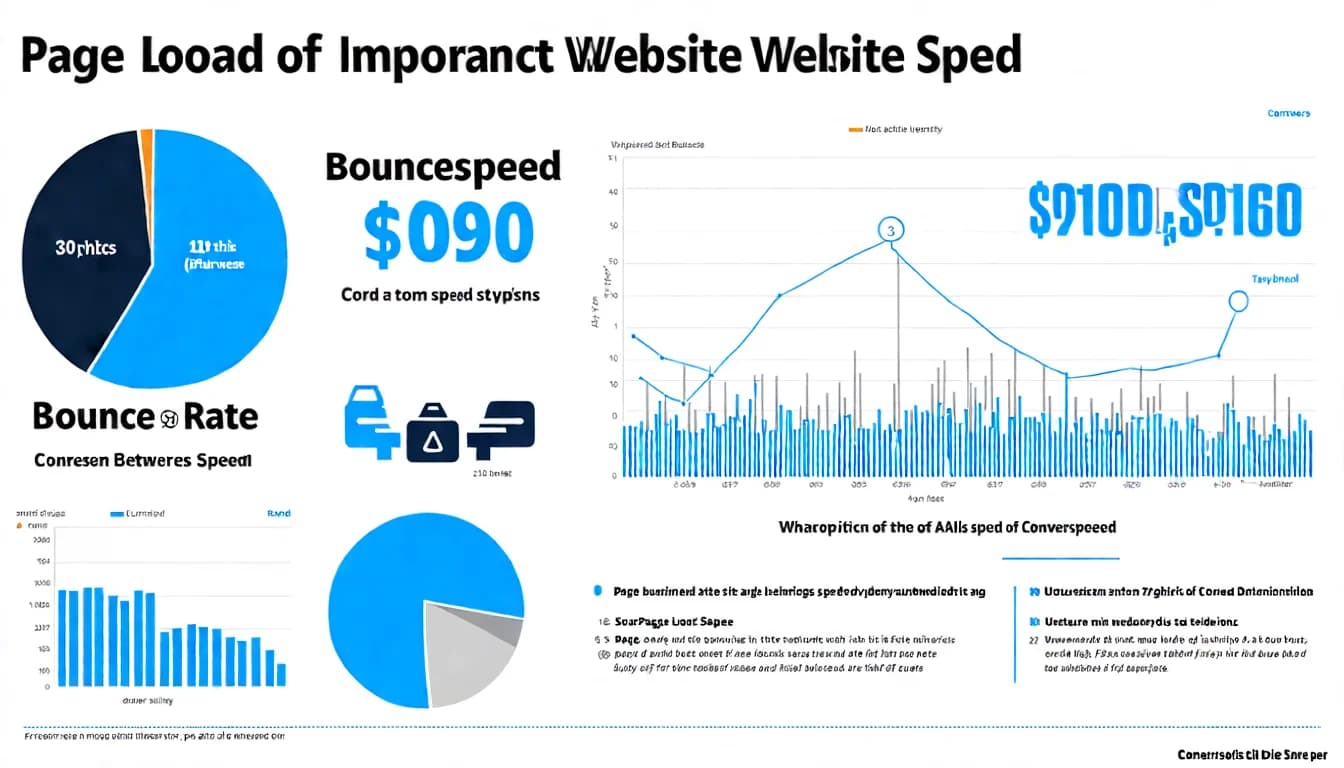
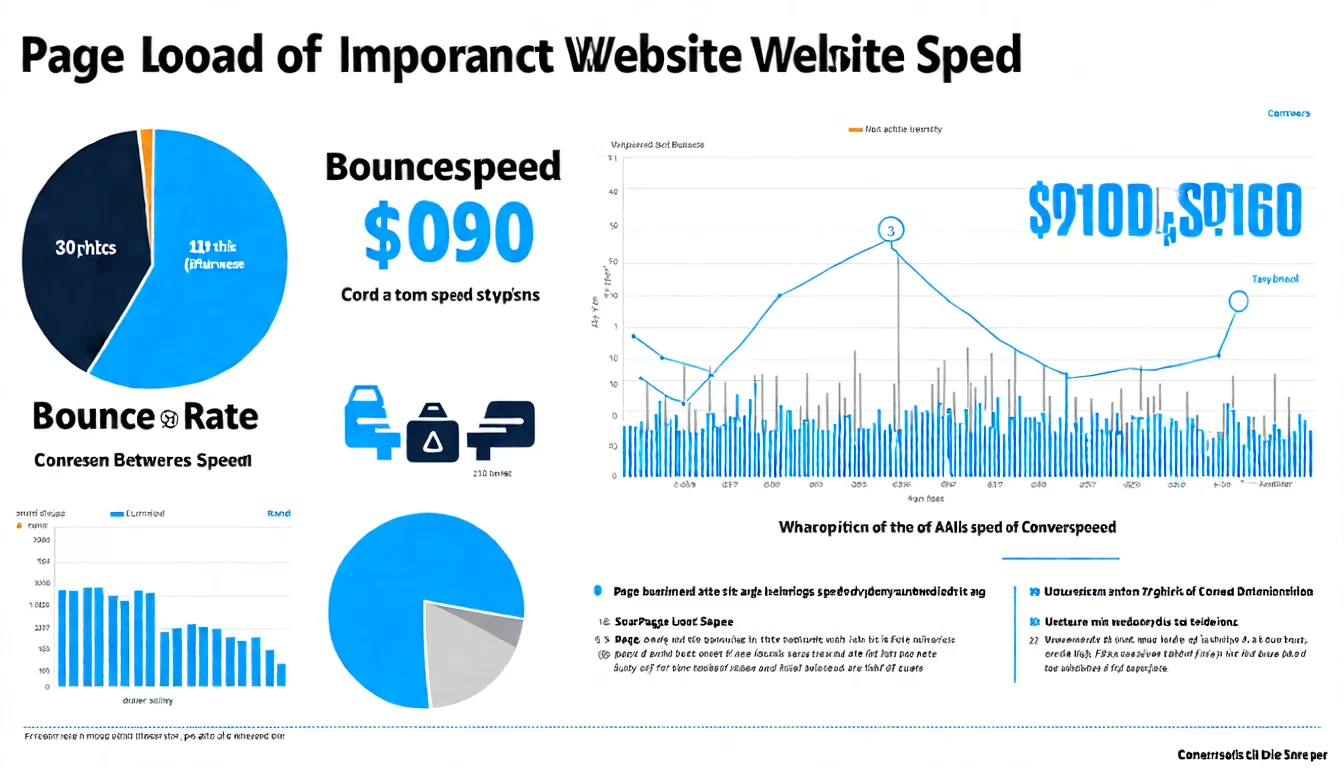
As load time stretches from 1 second to 3, to 5, to 10 seconds, the share of people who bounce climbs steadily — that direction is consistent across years of performance research.
In short: every extra second of waiting loses another batch of visitors.
Impact on SEO Rankings
In 2021, Google folded Core Web Vitals into its page experience signals. Google's current wording is more cautious than it was back then: the core ranking systems do look at a range of signals including Core Web Vitals, but "there is no single page experience signal," and good CWV scores alone don't guarantee a ranking lift.
What does this mean? If your site is significantly slower than competitors, all other things being equal, your rankings may suffer.
Google's reasoning is simple: it wants to provide the best search experience for users, and slow websites don't qualify as a "good experience."
Impact on Conversion Rates
Speed doesn't just affect SEO — it directly impacts business outcomes:
E-commerce and conversion-driven sites have observed the same thing for years: the slower the page, the lower the completion rate on the actions that matter — add to cart, form submissions, checkout.
For e-commerce sites, speed optimization can directly translate to increased revenue.
To learn more about technical SEO concepts, check out our comprehensive guide.
What Are Core Web Vitals?
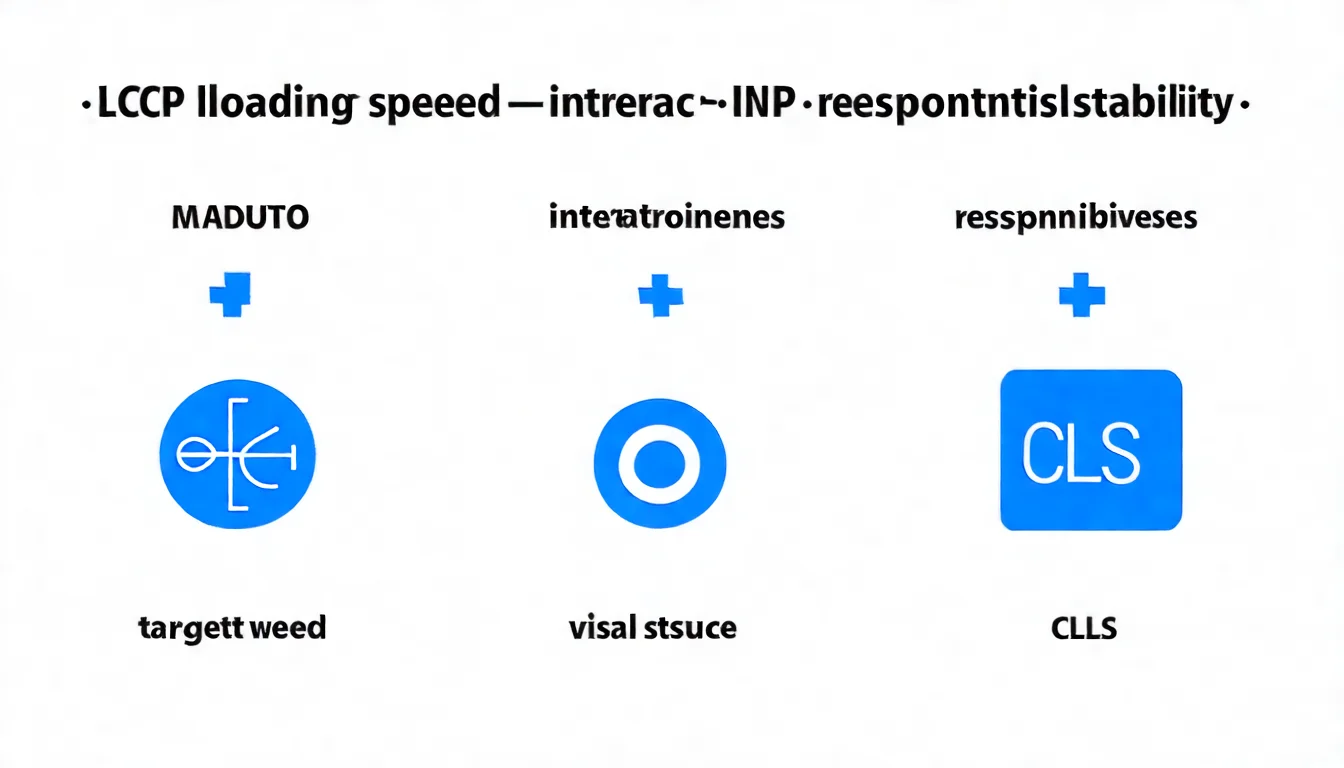
Core Web Vitals are three core web experience metrics defined by Google, and they're currently the most important speed evaluation standards.
LCP (Largest Contentful Paint)
LCP measures how long it takes for the largest element on the page (usually the hero image or main heading block) to fully load.
| Rating | Time |
|---|---|
| Good | ≤ 2.5 seconds |
| Needs Improvement | 2.5 - 4.0 seconds |
| Poor | > 4.0 seconds |
Common LCP elements:
- Large images
- Video thumbnails
- Background images
- Large text blocks
Optimization focus: Make the most important content appear faster.
INP (Interaction to Next Paint)
INP measures how long the page takes to respond after a user clicks, taps, or presses a key.
| Rating | Time |
|---|---|
| Good | ≤ 200 milliseconds |
| Needs Improvement | 200 - 500 milliseconds |
| Poor | > 500 milliseconds |
Optimization focus: Reduce JavaScript execution time so users don't feel "stuck" after clicking.
CLS (Cumulative Layout Shift)
CLS measures how much elements jump or shift during the page loading process.
| Rating | Score |
|---|---|
| Good | ≤ 0.1 |
| Needs Improvement | 0.1 - 0.25 |
| Poor | > 0.25 |
Common CLS issues:
- Images without width/height attributes that suddenly "expand" after loading
- Ads loading and pushing content around
- Font loading causing text size changes
Optimization focus: Keep elements stable during loading — no jumping around.
Focus on content optimization and leave the technical details to the professionals.
👉 Free LINE consultation: @006ljkda
How to Test Your Website Speed
Before optimizing, first measure your current performance:
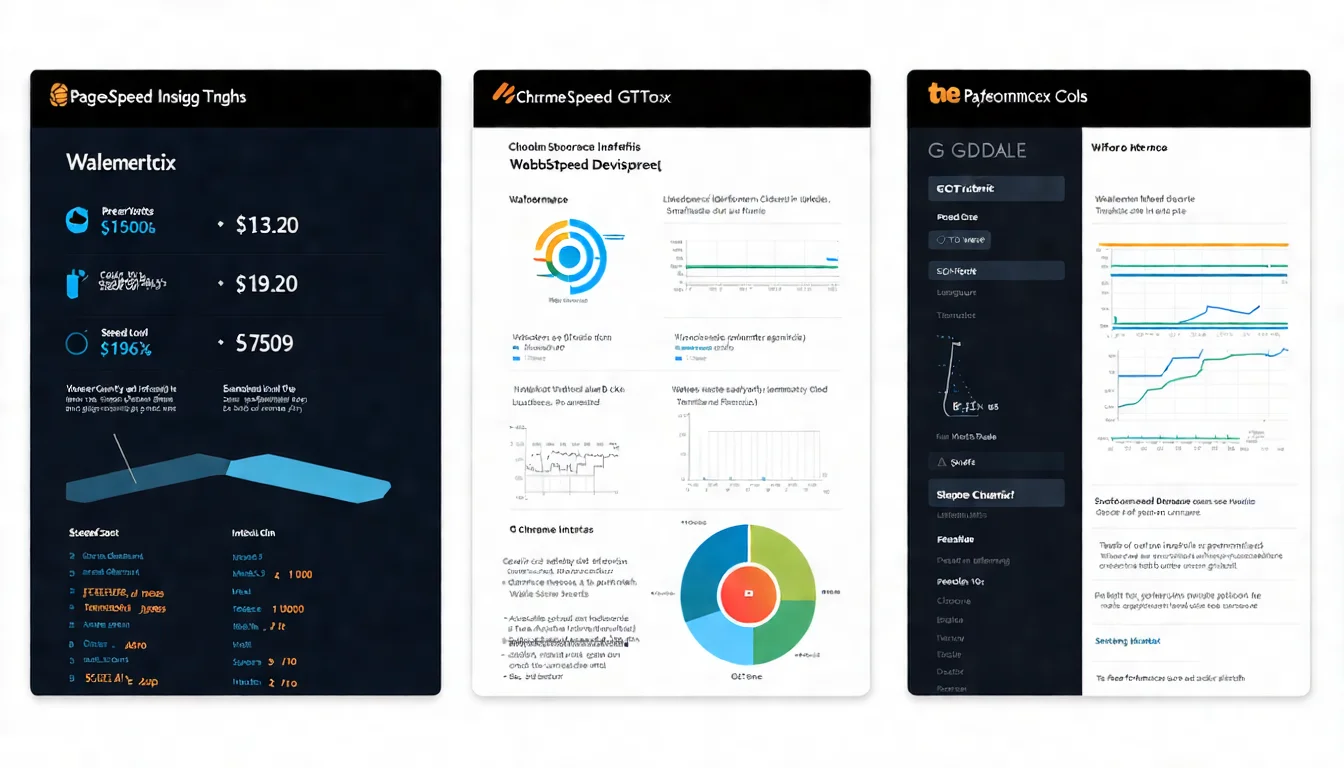
Google PageSpeed Insights
URL: https://pagespeed.web.dev/
This is the most important testing tool:
Features:
- Analyzes all three Core Web Vitals metrics
- Displays separate scores for mobile and desktop
- Provides specific optimization recommendations
- Shows "real user data" (if available)
How to use:
- Enter the URL you want to test
- Wait for the analysis to complete
- Review scores and recommendations
Interpreting results:
- 0-49: Poor (red)
- 50-89: Needs Improvement (orange)
- 90-100: Good (green)
GTmetrix
Another popular speed testing tool:
Features:
- More detailed loading waterfall charts
- Can choose different regions and devices for testing
- Historical comparison
- Lighthouse scores
Standout feature: The waterfall chart clearly shows the loading order and timing of each resource, helping you identify bottlenecks.
Chrome DevTools
Built into the Chrome browser:
How to use:
- Press F12 or right-click and select "Inspect"
- Select the "Network" tab to view network requests
- Select the "Performance" tab to view the performance timeline
- Select the "Lighthouse" tab to run a full audit
Advantage: Allows deeper analysis and can simulate different network speeds and devices.
10 Website Speed Optimization Tips
Here are the most practical optimization methods:
1. Compress Image Sizes
Images are usually the largest resources on a page and the easiest to optimize.
Methods:
- Compress using tools like TinyPNG or Squoosh
- Choose the right format: reach for WebP/AVIF first for both photos and illustrations, falling back to JPEG/PNG only when you need older-browser compatibility; stop using GIF for animation (the files are enormous) and use animated WebP or short video instead
- Don't upload images larger than needed
Target: Keep total image size per page under 1MB.
2. Use a CDN
A CDN (Content Delivery Network) distributes your content to servers around the world.
Benefits:
- Visitors load from the nearest server, reducing latency
- Reduces strain on the main server
- Usually includes automatic optimization features
Recommended services:
- Cloudflare (has a free plan)
- AWS CloudFront
- Google Cloud CDN
3. Enable Browser Caching
Browser caching stores resources locally after a visitor's first load, eliminating the need to re-download on subsequent visits.
How to set up:
- Configure Cache-Control headers on the server
- Set appropriate cache durations (longer for images, shorter for HTML)
- WordPress users can handle this with plugins
4. Minify CSS and JavaScript
Remove whitespace, comments, and line breaks from code to reduce file sizes.
Methods:
- Use build tools (Webpack, Gulp) for automatic minification
- WordPress optimization plugins
- Online minification tools
Result: Typically reduces file sizes by 20-30%.
5. Reduce HTTP Requests
Every CSS file, JavaScript file, and image is an HTTP request. More requests mean slower loading.
Methods:
- Bundling is situational: merging all your CSS/JS into one file was the standard move in the HTTP/1.1 era, but multiplexing is much cheaper under HTTP/2, and over-bundling hurts cache granularity (change one line and the whole bundle is invalidated)
- The same goes for CSS Sprites — rarely the first choice today unless you genuinely still have a lot of small-image requests
- The more reliable win is cutting the resources themselves: remove CSS/JS you no longer use
- Inline small resources (Critical CSS)
6. Choose Quality Hosting
Hosting quality directly affects server response time.
Selection criteria:
- Choose hosting with SSDs
- Choose a data center location close to your target audience
- Consider cloud hosting or VPS — avoid the cheapest shared hosting
- Choose a well-reviewed hosting provider
Recommendations:
- Cloudways
- SiteGround
- DigitalOcean
7. Lazy Load Images
Lazy loading makes images load only when they enter the viewport, rather than loading everything at once.
Benefits:
- Faster initial load
- Saves visitor bandwidth
- Reduces server load
Implementation methods:
- Use HTML's
loading="lazy"attribute - WordPress plugin support
- JavaScript libraries
8. Optimize Font Loading
Custom fonts can slow down loading or cause CLS issues.
Methods:
- Only load the font weights you need
- Use
font-display: swapto prevent text flashing - Consider using system fonts
- Preload important fonts (preload)
9. Remove Unnecessary Plugins
Too many plugins slow down your site, especially on WordPress.
How to check:
- List all active plugins
- Deactivate and test speed changes
- Identify plugins that slow things down
- Evaluate whether they're truly needed, or if lighter alternatives exist
10. Re-evaluate AMP (It's No Longer an Advantage)
AMP (Accelerated Mobile Pages) is the streamlined page format Google introduced years ago. If you're still maintaining an AMP version of your site, 2026 is a good time to reconsider.
Where things stand:
- Google's own documentation states that AMP pages are indexed just like any other web page, and Google applies the same standard to all pages regardless of the technology used to build them
- Top Stories has not required AMP since 2021
- The AMP badge in search results has been removed
Considerations:
- AMP has more restrictions and less functionality than regular web pages
- It means maintaining a second version of your site, at a cost that buys you nothing on the search side
Practical advice: Instead of investing in AMP, put that effort back into the first nine items and get your main site's Core Web Vitals right.
Don't know the technical side? That's fine — get the content right first. Speed optimization can come later.
👉 Learn about AI SEO article services
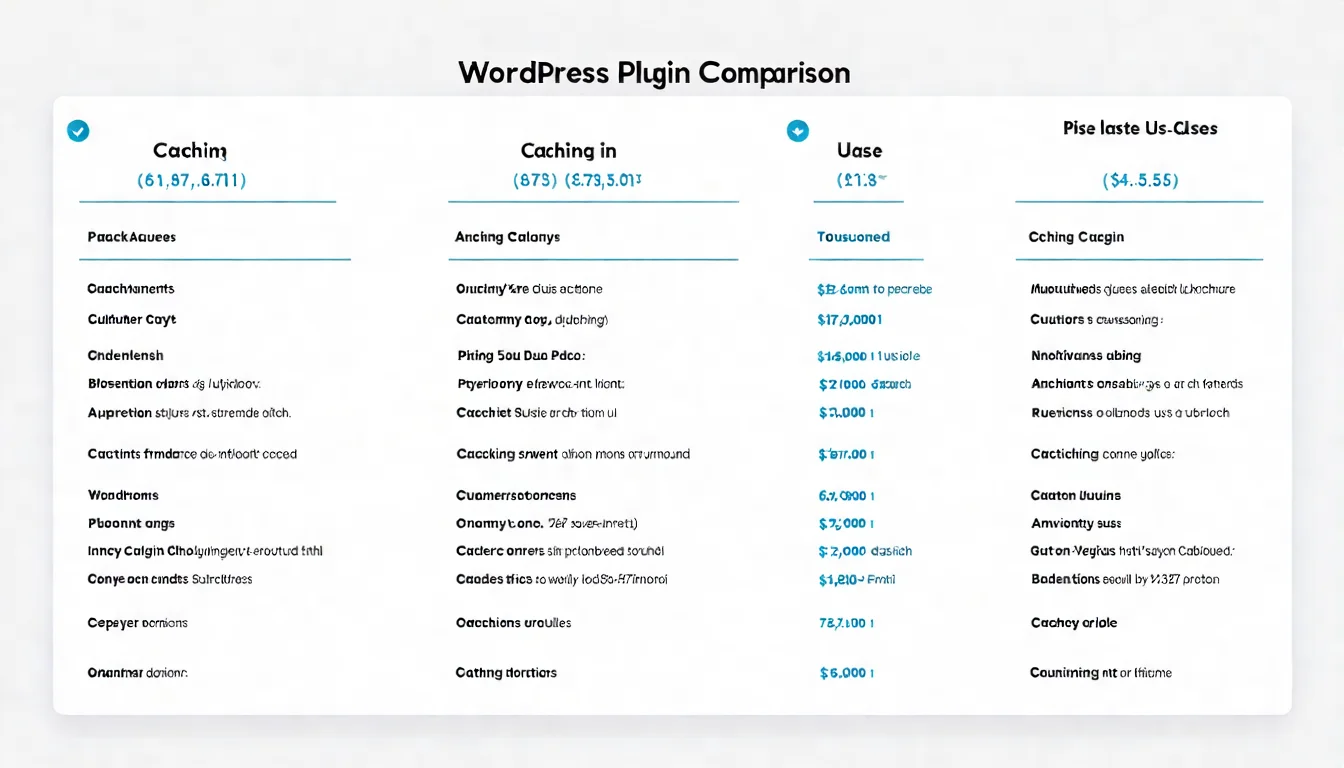
WordPress Speed Optimization Plugins
If you use WordPress, these plugins can handle most speed optimization for you:
WP Rocket
The most popular premium caching plugin.
Features:
- Page caching
- Resource minification and combining
- Lazy Loading
- Database optimization
- CDN integration
Cost: Starting at $59.95/year (single site)
Pros: Easy setup, significant results, great support.
LiteSpeed Cache
The best choice if your hosting uses the LiteSpeed server.
Features:
- Server-level caching (faster than regular plugins)
- Image optimization
- Resource minification
- CDN integration (QUIC.cloud)
Cost: Free
Pros: Completely free with full features. General optimization features work on any host, but server-level page caching requires LiteSpeed hosting or the QUIC.cloud CDN.
W3 Total Cache
A well-established free caching plugin.
Features:
- Page caching
- Browser caching
- Resource minification
- CDN integration
Cost: Free (premium version available)
Pros: The free version is already quite comprehensive. The downside is a more complex setup.
Website Speed FAQ
Q: How fast should my website be?
A: Ideal benchmarks:
- First Contentful Paint (FCP): Under 1.8 seconds
- LCP: Under 2.5 seconds
- Full load: Under 3 seconds
But there's no need to obsess over extreme speed. Achieving "Good" Core Web Vitals scores is sufficient — put your energy into content.
Q: Do I need programming skills for speed optimization?
A: Not necessarily. WordPress plugins can handle most optimizations without coding. However, more granular optimization (like manually optimizing JavaScript) may require technical support.
Q: Can speed optimization break site functionality?
A: It's possible. Some optimizations (like combining JavaScript or deferred loading) may conflict with certain plugins or features. Recommendations:
- Back up before optimizing
- Thoroughly test functionality after optimizing
- Troubleshoot issues one by one if they arise
Q: Do mobile and desktop need to be optimized separately?
A: Most optimizations benefit both. However, note that Google uses "mobile-first indexing," so mobile speed is more important. It's normal for PageSpeed Insights mobile scores to be lower than desktop.
Why Speed Is the Foundation of User Experience
Website speed isn't an optional "nice to have" — it's the basic condition that ensures users are willing to stay.
Key Takeaways:
- Why speed matters: Affects user experience, SEO rankings, and conversion rates
- Core Web Vitals: LCP, INP, and CLS — the three key metrics
- Testing tools: PageSpeed Insights, GTmetrix, Chrome DevTools
- 10 optimization tips: From image compression to CDN, from caching to plugin cleanup
- WordPress plugins: WP Rocket, LiteSpeed Cache, W3 Total Cache
Recommended Action Steps:
- Test your current scores with PageSpeed Insights
- Start with the easiest item: compress images
- Install a caching plugin (LiteSpeed Cache on LiteSpeed hosting; WP Rocket or W3 Total Cache on other hosts)
- Check if there are unnecessary plugins you can deactivate
- Regularly track score changes
Remember: speed optimization is an ongoing effort, but you don't need to get it perfect all at once. Hit the basic benchmarks first, then continuously improve.
For more Technical SEO checklist items, check out our complete guide.
AI article services that save time and boost rankings. Let us handle the content while you focus on business and technical optimization.