![Bing Webmaster Tools Guide: Verify, Sitemaps, AI [2026]](/_next/image?url=%2Fblog%2Fimages%2Fseo-tools%2Fbing-webmaster-tools-guide-01.webp&w=3840&q=75)
Your site is set up in Google Search Console, and you check the reports every month. But has Microsoft Copilot ever cited one of your articles? GSC can't answer that.
The answer sits in another free tool: Bing Webmaster Tools. Its AI Performance report shows how your content gets cited in Copilot and in Bing's AI summaries.
There's a catch. It only starts collecting data on the day you add your site. Nothing before that gets filled in. Start a month late, and you lose a month of data.
This tutorial follows the order you'll actually work in: first how it differs from GSC, then verification and Sitemap submission, and finally the 5 reports to check every month. If you already use GSC, you can import your site at the verification step without touching your site's code.

💡 Want to know how AI search sees your website right now? Start with a Free AI visibility check
Key takeaway: Bing Webmaster Tools is Bing's free webmaster dashboard. Besides search performance, it shows how your site gets cited in Copilot. The official help says data usually appears about 48 hours after you add a site (Bing Help, 2026), and Search Performance does not backfill data from before you added it (Bing Help, 2026).
What Is Bing Webmaster Tools? How It Differs from Google Search Console
Bing Webmaster Tools is Microsoft's free dashboard for website owners (the official home page says "Get started for free", Bing Webmaster Tools, 2026). You use it to see how Bing finds, indexes, and shows your site. Its help center currently lists 20 feature items, from site verification, search performance, and the AI citation report to URL removal (Bing Help Center, 2026).
It plays the same role as Google Search Console, so many people just call it Bing Search Console. Searches like "bing master" are looking for this same tool too.
Most features map across the two. The differences are a few reports only Bing has:
| Bing Webmaster Tools feature | What it shows | Rough GSC equivalent |
|---|---|---|
| Search Performance | Clicks, impressions, CTR, average position | Performance report |
| AI Performance | How your content gets cited in Copilot and Bing AI summaries | Generative AI report (impressions only for now) |
| URL Inspection | Index status of a single URL, and what Bingbot fetched | URL Inspection |
| Sitemaps | Submit and manage Sitemaps | Sitemaps |
| Keyword Research | Search volume and related terms on Bing | No tool by that name |
| Site Scan | On-demand technical SEO scan of your site | No tool by that name |
One thing to know up front. Search Performance only starts collecting data on the day you add your site. The official wording is "you cannot see backdated data" (Bing Help, 2026). So even if you don't plan to work on Bing seriously yet, it's worth turning it on now so data starts piling up.
For how GSC itself works, see our Google Search Console tutorial. As for whether you need a separate SEO plan for Bing, the answer is usually no. The reasons are in Bing SEO vs Google SEO.
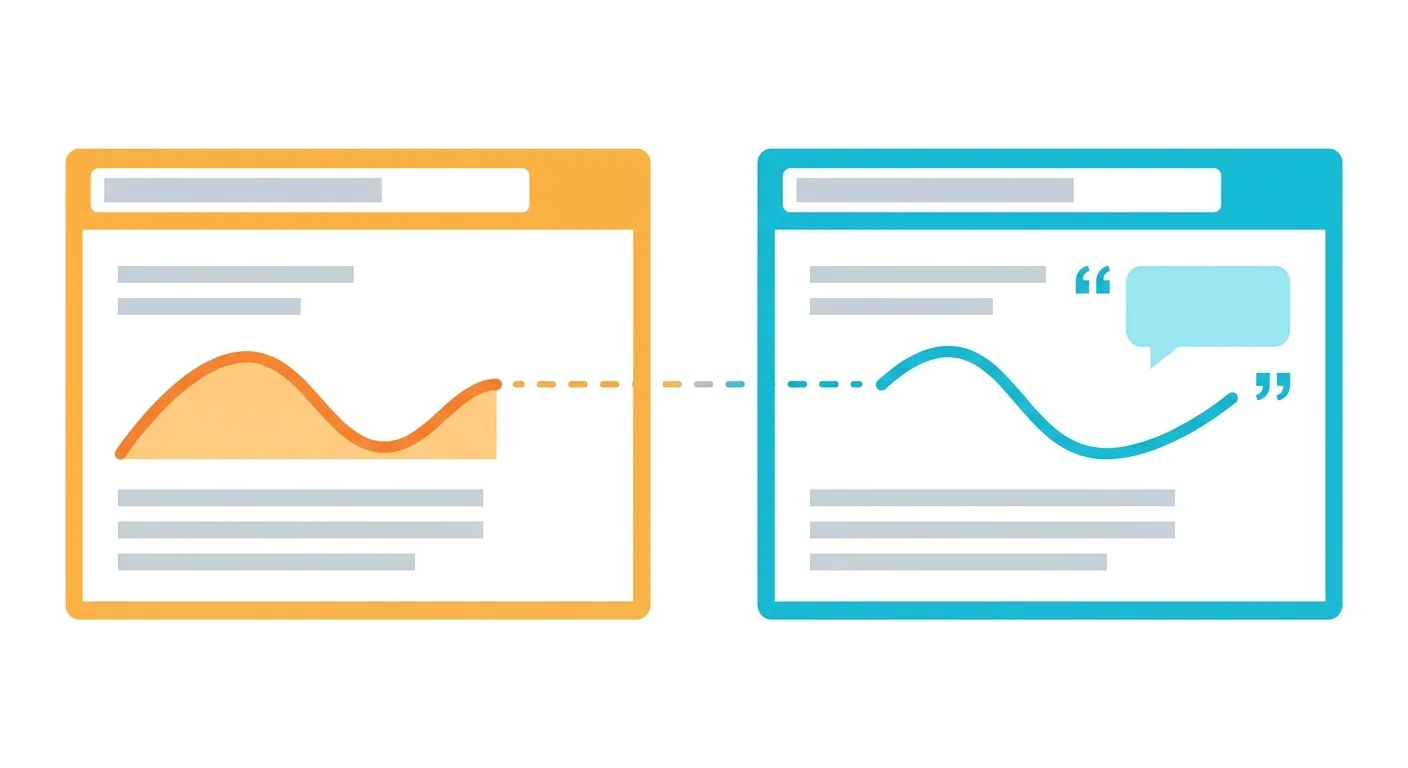 Caption: Most reports in the two tools match one to one. Bing adds a report for AI citations.
Why Turn It On Now: Copilot Citation Data Lives Here
According to the Bing help page, the AI Performance report covers three places: Microsoft Copilot, AI summaries in Bing search, and select partner AI services (Bing Help, 2026). It tells you which pages were cited, how citations trend over time, and the grounding queries tied to your content (the queries AI uses to look up information while answering).
The report launched as a public preview in February 2026. On October 13, 2026, Bing added Topics Portfolio (beta), which shows opportunity queries where other sites get cited and you don't (Bing Webmaster Blog, 2026).
What about Google? The generative AI report in Search Console currently gives impressions only, with no clicks and no individual queries. Details are in our Search Console AI performance report guide. Bing's report gives you the cited pages and queries, so the two complement each other.
Our news feed picked up the Topics Portfolio announcement the week of October 13. Before writing this, we read a dozen or so related pages in the Bing help center one by one, and found a small mistake in the official pages themselves: on the Site Scan page, the description under "URL List" is word for word the same as the one under "Sitemap". So where the official docs aren't clear about screen details, we'd rather you go by what you actually see in the dashboard than guess from a wrong description.
There's one claim we won't make: that turning on Bing Webmaster Tools makes ChatGPT recommend you. You'll often see it said online that ChatGPT uses Bing's index. Before you base any decision on that, check OpenAI's own official documentation, and don't treat a secondhand claim as a reason to open the tool. The reason to open Bing's tool is simple: Copilot and Bing AI summary citation data is in this report.
Three limits to be clear about first, all from the help page itself:
- The data is sampled, not a complete record. Sites with very few citations may see no data, and that doesn't mean they've been penalized
- The report doesn't measure ranking, authority, or importance
- Changes in citation trends can't be attributed to any single cause or any single change
How to read each field in the report, and how to use it to find content gaps, is in a separate article: How to read the Bing AI Performance report.
Bing Webmaster Tools Sign-Up and Site Verification: Three Ways to Choose From
Bing officially offers two ways to add a site (import from GSC, or enter the URL manually) and four ways to verify site ownership (Bing Help, 2026). That looks like a lot, but you only need to ask yourself one question first: what access do you have?
We grouped the two official add methods and four verification methods into three options, based on the access each needs (this is our grouping, not an official category):
| Option | Official method | What you need | Best for |
|---|---|---|---|
| Import from GSC | Import sites from Google Search Console | A verified GSC account | People who already have GSC (fastest) |
| Edit site files | XML file verification, meta tag verification | Ability to upload files or edit the home page <head> |
People with a site admin panel or a developer |
| Edit DNS | DNS auto verification (Domain Connect), manually adding a CNAME | Ability to log in to your domain host account | People who manage the domain and don't want to touch the site |
Option 1: Import from Google Search Console (Fastest)
If you already have GSC, this is the fastest route. Once the import succeeds, the site is verified automatically, and the Sitemaps in GSC come over too.
Per the official help, the steps are:
- Log in to Bing Webmaster Tools and choose to import from Google Search Console
- Authorize Bing to read your GSC account information
- The screen lists the verified sites in GSC. Check the ones you want to add
- Click Import, and you're done
After that, Bing periodically re-checks ownership, and Sitemaps you add in GSC are imported automatically. If you don't want Bing to keep reading, click Disconnect in the Profile section to stop it.
There are limits: up to 100 sites per import, and up to 1,000 sites per account in total (Bing Help, 2026). If you only manage a site or two, you'll never hit them.
Option 2: XML File or Meta Tag
If you don't want to connect GSC, or the site isn't on GSC yet, use one of these two:
- XML file: download the official BingSiteAuth.xml and upload it to your site's root directory
- Meta tag: copy a
<meta>tag containing a verification code and paste it at the end of the home page's<head>section
Both require the ability to edit site files. Without admin access, it's faster to hand it to whoever manages the site or a developer.
Option 3: DNS Auto Verification or CNAME
If your domain host supports Domain Connect, you'll see a DNS auto verification option on screen. Log in to your host account and it adds the CNAME record for you. If you don't see that option, your host doesn't support it, and you can add the CNAME manually instead.
Whichever method you use, it usually takes 48 hours after adding the site before data shows up. A blank report on day one is normal.
The whole setup goes in this order:
- Log in to Bing Webmaster Tools
- Verify using one of the three options
- Submit your Sitemap, and turn on IndexNow if needed
- Wait about 48 hours, then start reading reports
Verification Keeps Failing? Check These Three Things First
When verification fails, we suggest checking the three points below one by one. We put them together from what each verification method's official text requires:
- Where the meta tag sits: the official text asks for it at the end of the home page
<head>section, with<body>coming right after<head>. If a plugin puts it somewhere else, it may not be read. - Where the XML file sits: it must be in the site root, meaning
yourdomain/BingSiteAuth.xmlhas to open. - No DNS auto verification option: this isn't an error. Your host just doesn't support Domain Connect. Use one of the other three methods.
Submitting Sitemaps and IndexNow: Let Bing Know About New Content Faster
Bing accepts four Sitemap formats: XML Sitemap, RSS 2.0, Atom 0.3 and 1.0, and a plain text file with one URL per line (Bing Help, 2026). If you imported from GSC, the Sitemaps page lists the imported ones directly, so there's no need to submit them again.
Two more small rules:
- You can also add a line
Sitemap: https://yourdomain.com/sitemap.xmlto robots.txt so Bing finds it on its own - To resubmit, you have to click one Sitemap at a time. The official text says "Resubmitting multiple sitemaps is not allowed"
For how to keep the Sitemap itself clean, see the Sitemap SEO guide.
IndexNow: Notify Search Engines the Moment a URL Changes
With a Sitemap, you wait for the search engine to come read it. IndexNow flips that around: you notify them. Whenever a URL is added, updated, or deleted, you send a notification. Bing's page says it notifies "multiple search engines" (Bing IndexNow, 2026).
On WordPress, there's no coding needed. The officially listed plugins are the IndexNow plugin, Yoast, RankMath, AIOSEO, and SEOPress. On Shopify, you can use InstaIndex.
If you integrate it yourself, it's four steps. For your developer:
| Step | What to do | Notes |
|---|---|---|
| 1 | Generate an API key | Used to confirm you own the domain |
| 2 | Save the key as a UTF-8 text file in the site root | If placed elsewhere, point to it with the keyLocation parameter |
| 3 | Submit a single URL or a batch | Response 200 = success; 400 = bad format; 403 = invalid key; 422 = URL doesn't belong to this site or key format mismatch; 429 = too many requests |
| 4 | Go back to Bing Webmaster Tools and confirm it was received | Check on the IndexNow page |
One point is often misunderstood: URLs sent through IndexNow still count toward your crawl quota. The official FAQ says "every crawl counts towards your crawl quota". Search engines just usually prioritize them. So don't resend thousands of URLs for your whole site every day. Only send the ones that changed.
The 5 Bing Webmaster Tools Reports to Check Every Month
Bing Webmaster Tools has lots of reports, but checking these 5 every month is enough. Search Performance and Keyword Research both let you look back up to 6 months (Bing Help, 2026), so checking once a month won't miss anything.
| Report | What to check each month | When to act |
|---|---|---|
| Search Performance | Click and impression trends from the Web and Chat source | Impressions fall two months in a row |
| AI Performance | Whether cited pages and grounding queries changed | A key page has never been cited |
| URL Inspection | Whether new and revised articles are indexed | It shows not indexed, or what Bingbot fetched is incomplete |
| Site Scan | How many Errors there are | Any Errors at all |
| Keyword Research | Bing search volume for your main keywords | You find a question-type keyword worth writing about |
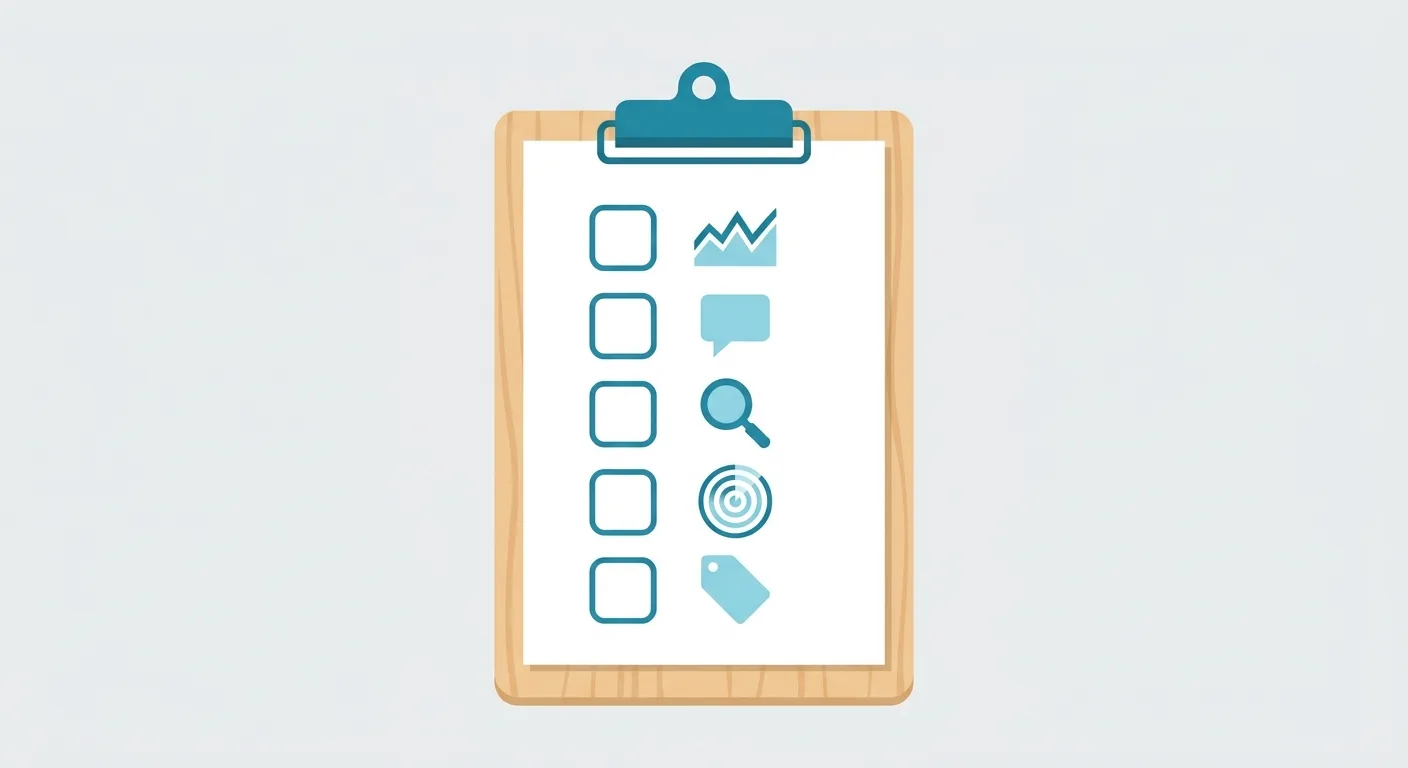 Caption: The 5 reports to check every month: Search Performance, AI citations, URL Inspection, Site Scan, and Keyword Research.
Search Performance: Traffic from Bing Search and Chat
This shows clicks, impressions, average CTR, and average position, plus crawl requests, crawl errors, and indexed pages. You can switch the data source between All, Web and Chat, News, Images, Videos, and more.
Two things to watch. First, average position is only available for the Web source. Switch to News or Images and it disappears. Second, "Chat" is a source category of Bing's own report. The help page describes it as links shown in Chat responses in Bing search. It isn't necessarily the same thing as Copilot, so don't read it as Copilot's numbers. For Copilot citations, look at AI Performance.
AI Performance: Which Pages Copilot Cited
Check just two things each month: the list of cited pages, and whether new topics show up in grounding queries. Data updates daily. You can choose 7 days, 30 days, 3 months, or a custom range, and export to CSV and Excel.
Full field definitions, how to use Topics Portfolio, and how to find content to add from the report are in the Bing AI Performance report tutorial.
URL Inspection: Are New Articles Indexed?
Enter a URL and you'll see its index status in Bing. Results are split into three cards: Index, SEO, and Markup. The Live URL tab shows what Bingbot actually fetches right now. If the page isn't indexed yet, you can click "request indexing" within that day's submission quota.
The Markup card only recognizes four structured data formats: HTML Microdata, Microformats, Open Graph, and JSON-LD. For how to add structured data, see the Schema structured data guide. Also, Live URL doesn't follow redirects. It tells you the page redirects and where to, and you click Inspect redirect destination to check the target URL.
Site Scan: A Monthly On-Site Health Check
Site Scan is an on-demand technical SEO scan. You can choose three scopes: Website, Sitemap, or URL List. Results come in three levels, Errors, Warnings, and Notices. Fix Errors first.
Two limits: it only keeps up to 5 scan records, so once full you have to delete one before starting a new one. The scan quota is set automatically by Bing, and the official text says "We do not currently support any requests to increase this quota". To prioritize the issues it finds, compare them with the technical SEO checklist.
Keyword Research: Fill Blind Spots with Bing Search Volume
The keyword research feature in Bing Webmaster Tools shows a term's search volume and trend on Bing, in three groups: Related keywords, Question keywords, and Newly discovered. You can filter by country, language, and device. The default view is the last 3 months, and you can look back up to 6 months (Bing Help, 2026).
Question keywords are great for writing an article's FAQ. Note that Newly discovered doesn't mean new terms people only started searching in the last 30 days. The official text specifically clarifies this. For the full keyword research process, see the complete keyword research guide.
When we run AI discoverability checks for clients, the deployment steps always include submitting to Bing Webmaster Tools, right after submitting to Google Search Console. It costs very little, and it gives Bing and Copilot one more way in to get to know the site.
5 Reports a Month Too Much to Read Yourself?
Reports tell you where something's wrong, but not which page to fix first. AI SEO Hacker can read your Bing and Google reports for you and line up the pages that need fixing first.
FAQ
How do I use the Bing Webmaster Tools API? Where's the API key?
You generate the API key inside Bing Webmaster Tools for a verified site. The URL Submission API allows up to 10,000 URLs per domain per day, and the quota resets at midnight UTC. That said, Bing strongly recommends IndexNow instead and states this API may be deprecated in the future, so new projects are better off connecting to IndexNow directly. If what you want is to read site data programmatically, the official home page also lists the Bing Webmaster API. Follow the official API documentation for how to connect.
Does Bing Webmaster Tools have an official MCP?
As of October 2026, none of the 20 feature items in the Bing help center is an MCP. If you want to connect through an unofficial MCP tool, first check what permissions it asks for and where your data goes. The programmatic channels the official docs mention are the Bing Webmaster API, the URL Submission API, and IndexNow.
How do I remove a URL in Bing Webmaster Tools?
Block URLs lets you temporarily hide a single page or a whole directory for 90 days. It usually takes effect within 12 hours, and you can click Extend before it expires. But it doesn't permanently delete anything from the index. To remove a page permanently, make it return 404 or 410, or add NOINDEX, and let Bingbot recrawl it.
What if Bing Webmaster Tools verification keeps failing?
First check which method you're using. The meta tag goes at the end of the home page <head>. The XML file has to open directly from the domain root. If you can't find DNS auto verification, your host doesn't support Domain Connect. The easiest fix is to switch to GSC import, which verifies the site automatically once the import succeeds.
I already have Google Search Console. Do I still need Bing Webmaster Tools?
Yes. Copilot and Bing AI summary citation data lives in Bing's AI Performance report, and GSC can't see it. Bing also only starts collecting data the day you add your site and doesn't backfill. If you already have GSC, importing takes just a few steps, and data usually starts showing up after 48 hours.
After Setting Up Bing Webmaster Tools, Do These 4 Things in Month One
Once Bing Webmaster Tools is set up, you only need to do 4 things in the first 30 days. Data takes about 48 hours to appear after you add the site, so don't worry about blank reports in week one.
- Confirm verification worked: if you imported from GSC, your Sitemaps should already show up on the Sitemaps page
- Turn on IndexNow: on WordPress, install a plugin and you're set. New posts will send notifications automatically from then on
- Run your first Site Scan: fix the Errors first, and keep this scan as your baseline
- Check AI Performance at month's end: note which pages were cited, and compare next month to see what changed
Setting up the tool is only the starting point. Whether Bing and Copilot are willing to cite you comes down to the content itself: does it answer what readers are really asking, do the facts have sources, and does each section still make sense when read on its own? The reports can slowly point you in the right direction on these.

🎯 Make Bing and Copilot Want to Cite Your Content
Setting up the tool is just step one. Whether AI cites you depends on your content. AI SEO Hacker offers an AI-driven SEO/GEO content service, from keyword planning to writing sections AI can understand. Tell us about your site.
Free consultation | Contact form
Further Reading
- Which Pages Did Copilot Cite? The AI Performance Report Tutorial
- Bing SEO vs Google SEO: Should Websites in Taiwan Bother?
- Search Console AI Performance Report: The Complete Guide
- Google Search Console Tutorial
- Sitemap SEO Guide
References
- Add and Verify site - Bing Webmaster Tools
- AI Performance - Bing Webmaster Tools
- Introducing Topics Portfolio (Beta) in AI Performance - Bing Webmaster Blog
- Search Performance - Bing Webmaster Tools
- Sitemaps - Bing Webmaster Tools
- How to add IndexNow to your website - Bing Webmaster Tools
- URL Inspection - Bing Webmaster Tools
- Site Scan - Bing Webmaster Tools
- Keyword Research - Bing Webmaster Tools
- URL Submission - Bing Webmaster Tools
- Block URLs - Bing Webmaster Tools
- Bing Webmaster Tools
![Yoast SEO Guide: WordPress SEO Plugin Setup [2026]](/_next/image?url=%2Fblog%2Fimages%2Fseo-tools%2Fyoast-seo-guide-01.webp&w=3840&q=75)
![Open-Source GEO Tools: 10 Free GitHub Projects [2026]](/_next/image?url=%2Fblog%2Fimages%2Fseo-tools%2Fopen-source-geo-tools-01.webp&w=3840&q=75)
![Google Search Console Tutorial: From Setup to Reading Reports [2026 Complete Guide]](/_next/image?url=%2Fblog%2Fimages%2Fseo-tools%2Fgoogle-search-console-tutorial-01.webp&w=3840&q=75)