![Yoast SEO Guide: WordPress SEO Plugin Setup [2026]](/_next/image?url=%2Fblog%2Fimages%2Fseo-tools%2Fyoast-seo-guide-01.webp&w=3840&q=75)
Install Yoast SEO, and a row of red, orange, and green traffic lights shows up next to your post editor. Turn them all green, and Google will rank you well?
Yoast's own answer: no.
This 2026 Yoast SEO guide follows Yoast's official help pages as they stand today. It walks you through the settings in this WordPress SEO plugin that actually matter: the first-time configuration wizard, the focus keyphrase and traffic lights, sitemaps, and noindex. At the end, we cover the difference between the free version and Premium.
We keep the dashboard's original English labels (for example, Site features and Advanced), so you can match them against your own dashboard.

💡 How visible is your WordPress site in AI search right now? Run a Free AI visibility check.
Key takeaway: Yoast SEO is a WordPress SEO plugin. The free version already handles SEO titles, descriptions, sitemaps, Schema, and noindex. Yoast's official beginner's guide says plainly that getting all-green traffic lights "in no way guarantees that it will rank" (Yoast beginner's guide, accessed 2026-10-20). The traffic lights are a writing checklist, not a ranking guarantee.
What Is Yoast SEO? The SEO Settings WordPress Sites Use It For
Yoast SEO is a WordPress plugin that helps you manage SEO titles, meta descriptions, XML sitemaps, Schema structured data, and indexing settings. While you write, it also gives you feedback through traffic lights. Yoast says it has over 13 million active installations and 850 million downloads (Yoast beginner's guide, accessed 2026-10-20).
So what does it actually do for you? In plain terms, it comes down to five jobs:
| The question you care about | The matching Yoast SEO feature | Where it lives in the dashboard |
|---|---|---|
| What does my page look like in search results? | Editing and previewing the SEO title and meta description | Search appearance in the editor sidebar |
| Can search engines find my pages? | Automatic XML sitemap | Settings > Site features |
| Can search engines understand what a page is about? | Automatic Schema (pages default to WebPage, posts default to Article) | Settings > Schema, and the Schema tab in the sidebar |
| Which pages shouldn't show up in search results? | noindex, nofollow, canonical | The Advanced tab in the sidebar |
| Is this post well written? | Three analyses: SEO, readability, and inclusive language | The editor sidebar, or the meta box below the post |
Yoast SEO's source code is public on GitHub under the GPL-3.0 license. In plain terms, the code is open, and the plugin itself is free to download and use. The paid Premium version adds extra features on top.
Yoast's beginner's guide also cites a common figure: "WordPress powers over 43% of all websites on the internet". But the date shown on that article page is February 2023, so don't cite that number as the 2026 picture.
Among the WordPress client sites we've taken over, some use Rank Math. If you're still choosing a plugin, start with our WordPress SEO plugin comparison. If you're still deciding whether your site should run on WordPress at all, see our CMS selection guide.
Whichever you pick, we recommend installing only one SEO plugin per site. Yoast's own sitemap help page also says that if your sitemap isn't generated by Yoast, you should first disable other sitemap plugins, then enable Yoast's sitemap.
The steps and screen names in this article follow Yoast's official help pages as read on 2026-10-20. If your dashboard looks different, go by what your dashboard shows.
Yoast SEO Installation and Setup Wizard: 6 Things to Do on First Setup
Once Yoast SEO is installed, the first screen you see is the configuration wizard. It's fine if you skip it at first. According to Yoast's guide, you can go back in through Yoast SEO > General in the dashboard and click the First-time configuration tab (Yoast beginner's guide, accessed 2026-10-20).
The wizard takes you through 6 basic settings, and each one has a reason:
| Step | Dashboard name | What to set | Why it matters |
|---|---|---|---|
| 1 | Site representation | Whether the site represents a person or an organization; fill in the name and logo | It's turned into Schema automatically, so search engines and AI platforms can recognize your brand correctly |
| 2 | Search engine visibility | Whether search engines may index the site | You can block indexing while the site is being built; you must switch it back before launch |
| 3 | Connect to Google Search Console | Connect Google Search Console | Get data on how your site performs in Google Search |
| 4 | Site titles and taglines | Site title and tagline | They appear in search results and social shares, and Yoast builds title templates from them |
| 5 | Social profiles | Links to Facebook, X, Instagram, LinkedIn | Uses Schema to connect your site to your social accounts |
| 6 | Content type optimization | Which content types should appear in search results | Most sites show posts and pages and hide media/attachment pages |
Pay special attention to step 2. Temporarily blocking indexing while you build the site is an officially allowed approach. But if you don't switch it back before launch, you're effectively asking search engines not to index your site, the whole time.
Step 1 is worth an extra minute too. Yoast's beginner's guide notes that with the rise of AI search tools like ChatGPT and Google AI Overviews, proper Site representation helps AI platforms reference your brand accurately. For what Schema is and why it matters, see our Schema structured data guide.
Where the Advanced Settings Are: Crawl Optimization, Schema, Breadcrumbs
Once the wizard is done, the basics are covered. The advanced settings all sit under Yoast SEO > Settings. The beginner's guide lists these locations:
| Setting | Dashboard path | What it does |
|---|---|---|
| Site features | Yoast SEO > Settings > Site features | Turn SEO analysis, readability analysis, cornerstone content, and XML sitemaps on or off |
| Crawl optimization | Yoast SEO > Settings > Crawl optimization | Clean up unnecessary code and optimize robots.txt automatically |
| Schema | Yoast SEO > Settings > Schema | Generate Schema automatically, including breadcrumbs and the Schema graph |
| Breadcrumbs | Yoast SEO > Settings > Advanced > Breadcrumbs | Turn on breadcrumb navigation |
Crawl optimization looks technical. The beginner's guide says beginners can stick with Yoast's defaults (the original wording: "For beginners, Yoast’s default settings work perfectly"). If you're not sure what a toggle does, leave it alone.
Should Category, Tag, Author, and Date Archives Be Shown?
An archive is a list page that WordPress builds automatically by grouping posts of the same kind. Should they appear in search results? Yoast's beginner's guide summarizes what most WordPress SEO experts recommend:
- Category archives: most people choose to show them
- Tag archives: hiding them is recommended, to avoid duplicate content
- Author archives: on for multi-author sites, off for single-author sites
- Date archives: most sites can safely turn them off
That's a general rule, not a requirement. Our advice: if one of your tag pages is actively maintained and people actually search for it, you don't have to switch it off just because the rule says so.
Finished the Setup Wizard but Not Sure You Got It Right?
WordPress has a lot of toggles. Get one content type toggle wrong, and an entire group of pages can disappear from search results. AI SEO Hacker can run an SEO health check on your WordPress site and review each setting one by one.
Yoast SEO Focus Keyphrase and Content Analysis: The Lights Don't All Need to Be Green
The focus keyphrase is the main keyword you want a post to rank for. You enter it in the Yoast SEO sidebar on the right side of the editor. Yoast is blunt about this: entering it doesn't mean Google will know which keyword you want to rank for; it only lets Yoast give you feedback (Yoast beginner's guide, accessed 2026-10-20).
In other words, the focus keyphrase is for Yoast, not for Google.
There are two places to enter it:
- Sidebar: in the block editor, it's on the right side of the editor; if you can't see the sidebar, click the Yoast icon in the top-right corner of the screen
- Meta box: the SEO tab below the post editing area
What happens if you leave it blank? The sidebar help page says: "If you do not set a keyphrase, the SEO analysis traffic light will be grey." A grey light means the SEO analysis has nothing to check against.
So which keyword should you enter? The beginner's guide advises that if you're serious about rankings, do keyword research first instead of picking one by gut feeling, post by post. For how to do it, see our complete keyword research guide.
Three Analyses: SEO, Readability, Inclusive Language
Yoast SEO's content analysis comes in three types, each giving feedback a little differently:
| Analysis | What it checks | How it gives feedback |
|---|---|---|
| SEO analysis | Keyphrase placement in the introduction and subheadings, keyphrase density, meta description length, image alt text | Green = good, orange = could be improved, red = needs attention |
| Readability analysis | Sentence length, paragraph length, consecutive sentences starting the same way, transition words, subheading spacing | Three levels: Problems, Improvements, Good Results |
| Inclusive language analysis | Words or phrasing that may not be inclusive | Flags wording to watch |
In the readability analysis's three levels, the most urgent items go under Problems. Deal with Problems first, and look at Improvements when you have time.
With Premium, you can also set a Related keyphrase. The sidebar help page states that its analysis is somewhat less strict than the one for the focus keyphrase.
Do All-Green Lights Mean You'll Rank?
No, and Yoast says so itself. From the beginner's guide:
"No, not every single traffic light in the different analyses has to be green for your post or page to rank. Similarly, getting your post and traffic lights ‘all-green’ in no way guarantees that it will rank."
The same passage adds: "Proper keyword research and site structure always come before getting green bullets." Keyword research and site structure always come before turning the lights green.
The lights can only check what's inside this one post. They can't see how others have written about the same keyword in search results, and they can't see what readers really want to ask. So treat the lights as a pre-submission checklist, and don't twist a smooth sentence into an awkward one just to clear an orange light.
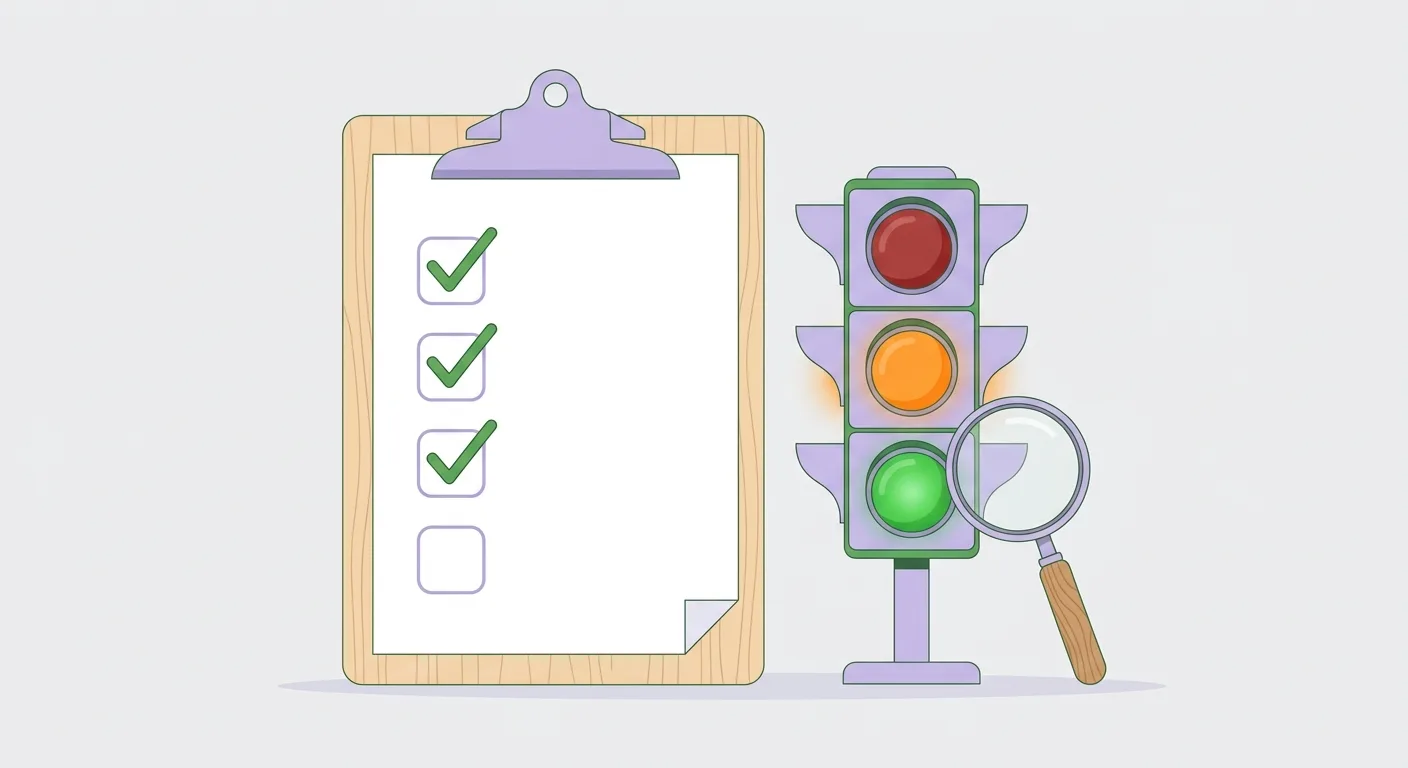 Caption: The traffic lights work like a pre-submission checklist. Ticking every box doesn't guarantee a ranking.
For Chinese-Language Sites: Yoast's Length Guidance Is in English Units
Yoast's feedback includes a few common numbers: meta description length "120-156 characters", paragraphs "under 150 words", and a subheading every "300 words". These recommendations are based on English characters and English word counts.
One Chinese character is not the same unit as one English word. Count Chinese text against the English numbers, and the lengths you get will be off.
Here's what we recommend:
- Meta descriptions and titles: don't count characters. Look at how wide they actually display in search results and whether they get cut off. For how to write them, see our on-page SEO guide
- Paragraphs and subheadings: treat Yoast's reminders as a direction. Split paragraphs that run too long and add subheadings when content runs long, without getting stuck on a specific number
So which languages does Yoast's analysis support? The pricing page FAQ says: "The analysis works in more than 20 languages. Check the language availability list for the current set." Whether your site's language is on the list, go by the latest version of the official language list.
Cornerstone Content: Mark Your Most Important Posts
Cornerstone content is the handful of posts on your site that are the most complete and that you most want to rank. Once you mark a post as cornerstone in the sidebar, the sidebar help page says three things happen:
- The SEO analysis gets stricter, to match the standard of a key article
- Premium's internal linking suggestions give it priority
- There's a stale cornerstone content filter to help you find cornerstone posts that haven't been updated in too long
The idea of cornerstone posts is close to the core page of a topic cluster. To plan it as a full set of articles, see our topic cluster strategy guide.
Yoast SEO Sitemap Settings: Turning It On, Viewing It, and Common Questions
Yoast SEO generates an XML sitemap automatically and updates it when you add or delete content. To turn it on, go to Yoast SEO → Settings → Site features in the WordPress dashboard, and under Technical SEO, switch XML sitemaps to On (Yoast help: XML sitemaps, accessed 2026-10-20).
Following Yoast's help page, the full steps are:
- Click Yoast SEO in the WordPress dashboard
- Go to Settings
- Click Site features
- Under Technical SEO, slide the XML sitemaps toggle to On; a purple checkmark means it's enabled
- Click View the XML sitemap to see your sitemap
Once it's on, there are two rules to know:
- Content types set to noindex won't appear in the sitemap
- Yoast removed the sitemap priority setting back in version 3.5, because "Google has said publicly that they don’t use them on most sites"
So there's no need to look for how to adjust priority. That field no longer exists.
After the sitemap is generated, remember to submit it to Google Search Console. The steps are in our Google Search Console tutorial. For which URLs a sitemap should and shouldn't include, see our sitemap SEO guide.
Is Your Sitemap at /sitemap.xml? Then Yoast Didn't Generate It
Yoast's help page says this directly: if your sitemap is at example.com/sitemap.xml, it wasn't generated by Yoast SEO. It probably comes from another plugin, or from WordPress itself.
Yoast's fix takes two steps:
- Disable other plugins that generate sitemaps
- Use FTP to delete any physical sitemap files on the site
Once both are done, turn on Yoast's sitemap. If a site has two sitemaps at the same time, search engines may pick up the one you're not maintaining.
Why the Sitemap Itself Is Set to noindex
Some people check their sitemap with a tool, see a noindex on it, and assume something's misconfigured. It's actually intentional.
Yoast's help page explains that a sitemap doesn't need to be indexed by search engines to be read, so Yoast adds an x-robots-tag header with "noindex, follow" to every XML sitemap response. In other words: the sitemap itself shouldn't show up in search results, but search engines still follow the links inside it.
A note for engineers: you can adjust how many URLs each sitemap holds with the wpseo_sitemap_entries_per_page filter. Yoast's example sets the limit to 100.
Yoast SEO noindex and Robots Settings: Which Pages Shouldn't Be Found
noindex asks search engines not to put a page in search results. In Yoast SEO, you set it for a single post in the editor's Advanced tab, and for a whole group of content by switching off a toggle under Settings. Yoast's help page specifically warns that this affects your visibility in search engines, so decide carefully (Yoast help: How to noindex URLs, accessed 2026-10-20).
Which pages usually shouldn't be found? Yoast's examples are internal search results pages, admin pages, and login pages.
How to Set noindex on a Single Post
- Log in to WordPress and open the post, page, product, category, or tag you want to change
- Open the Yoast SEO sidebar (click the Yoast icon in the top-right of the editor), or scroll down to the metabox below the editing area
- Click the Advanced tab
- Under Allow search engines to show this content in search results, select No
Can't See the Advanced Tab? Two Official Help Pages Say Different Things
If you can't see the Advanced tab, it's usually because of your account's permissions. But two of Yoast's official help pages disagree on who can see it by default:
| Official help page | Original wording |
|---|---|
| Sidebar help page | "By default, this feature is only available to site administrators." |
| noindex help page | "Only editors and administrators can access the Advanced tab by default." |
We read Yoast's help pages one by one while writing this article, and only noticed the mismatch when we read these two side by side. One page says only administrators by default; the other says both editors and administrators.
The two pages do agree on one thing: both say this permission can be adjusted so other users can access the Advanced tab too. To know which applies to you, check your own dashboard and go by what's on screen.
How to noindex a Whole Group of Content: Post Types, Categories, Tags, Archives
To take a whole group of content out of search results, you don't need to change posts one at a time. Go to Yoast SEO → Settings and find the matching type:
| Content to exclude | Where to find it |
|---|---|
| Content types such as Posts, Pages, Products | Content types in Settings |
| Taxonomies such as Categories and Tags | Categories & tags in Settings |
| Author Archives and Date Archives | Advanced in Settings |
Once you find it, switch the toggle to off (it turns grey and shows an X), then click Save changes at the bottom of the screen.
A few defaults to know up front, so you don't waste effort:
- Internal search results pages and 404 pages are already noindex, follow by default
- The feature for setting archive subpages to noindex has been removed; Yoast's reason is "Google is now much better at paginated series"
nofollow and canonical Are in the Advanced Tab Too
Besides noindex, the Advanced tab lets you set three more things: whether search engines should follow the links in this post (nofollow), advanced meta robots tags, and the canonical URL.
On links, Yoast's help page says that since Yoast SEO 14.4 you can control individual links. Posts, pages, and products allow search engines to follow links by default; categories and tags don't have this setting.
One last reminder. Even if you set your entire site to noindex, Yoast's wording is "it’s up to search engines to honor this request". Whether to comply is the search engine's call. It's not a switch that's guaranteed to take effect.
Our advice: before changing noindex, write a list of which pages you're changing and why. After the change, check those pages' index status in Google Search Console. You can use our technical SEO checklist as a reference for the checks.
Also, noindex controls whether a page appears in search results. Controlling whether AI crawlers can read your site is a separate layer of settings in robots.txt, covered in our AI search crawler settings guide.
Is Yoast SEO Premium Worth Upgrading? Free vs Premium
The free version of Yoast SEO already covers the basics: focus keyphrase analysis, sitemaps, Schema, and noindex. As shown on Yoast's site on 2026-10-20, Premium costs US$9.90 per month, billed annually at US$118.80, excluding tax (Yoast SEO Premium pricing page, accessed 2026-10-20).
The pricing page displays prices with "$", and the first option in the currency menu at the bottom of the page is USD; EUR and GBP are also available. Go by the checkout page for the actual amount.
Here's how licensing works:
- One subscription covers one site or domain. If you have several sites, buy several subscriptions and choose the quantity at checkout
- Buying several at once gets a bulk discount; if you manage 100 or more client sites, there's dedicated agency licensing and pricing
- You can add both your live site and your staging site in MyYoast and transfer the subscription to the staging site
The plan includes the Premium plugin itself, plus three plugins (Local SEO, News SEO, and Video SEO), 1 seat for the Google Docs add-on (extra seats are US$5 per seat per month, excluding tax), Yoast SEO Academy courses, and 24/7 support.
So what can the free version and Premium each do? The table below lists only items that Yoast's pages label explicitly, and the column shows how the official pages label them:
| Feature | Official label | Source |
|---|---|---|
| Focus keyphrase; SEO, readability, and inclusive language analysis | Not labeled Premium | Beginner's guide, sidebar help page |
| XML sitemap, noindex, canonical, Schema settings | Not labeled Premium | Sitemap, noindex, and sidebar help pages |
| Social sharing title, image, and description settings | Not labeled Premium | Sidebar help page |
| Visual preview of Facebook sharing | Labeled Premium | Sidebar help page |
| Multiple keyphrases (up to 5), synonyms and word forms | Labeled Premium | Pricing page |
| Related keyphrase, Internal linking suggestions, Insights | Labeled Premium | Sidebar help page |
| Redirect prompts when moving or deleting pages, bulk redirect management by CSV | Premium feature | Pricing page |
| AI bulk drafting of missing titles and descriptions (saved only after review) | Premium feature | Pricing page |
| Content Planner, orphaned content workout | Premium feature | Pricing page |
| Schema aggregation, Bot blocker | Premium feature | Pricing page |
| AI Generate, AI Optimize, AI Summarize | Premium or Yoast SEO AI+ | Beginner's guide |
| AI Brand Insights | Yoast SEO AI+ package | Beginner's guide |
| Yoast SEO Abilities (lets AI tools read and write SEO settings) | Integration page states it's included in Yoast SEO too | Abilities integration page |
The social preview row needs one more note. The beginner's guide says there are Facebook and X previews below the Google preview; the sidebar help page says the Facebook visual preview is Premium. The two pages say different things, so go by what you actually see in your dashboard.
The pricing page also states that AI-drafted content follows "Nothing saves until you have reviewed it". Nothing is saved without your review. For what the Yoast SEO AI+ package costs, go by the latest plans page on Yoast's site.
When Do You Actually Need Premium?
This section is our advice, not a Yoast rule:
- A single blog or a brand website: start with the free version; focus keyphrase analysis, sitemaps, and noindex are enough
- You often change URLs or move pages: Premium's redirect prompts and bulk CSV redirects save a lot of manual setup
- You want one post to cover several search phrasings: Premium lets you set up to 5 keyphrases
- You have a physical store: Premium includes the Local SEO plugin
- You need someone to answer questions at any hour: Premium has 24/7 support
If you're still torn between Yoast, AIOSEO, and Rank Math, we've laid out all three plugins' free-version scope, billing, and site licensing in the three plugins' free versions, billing, and site licenses compared.
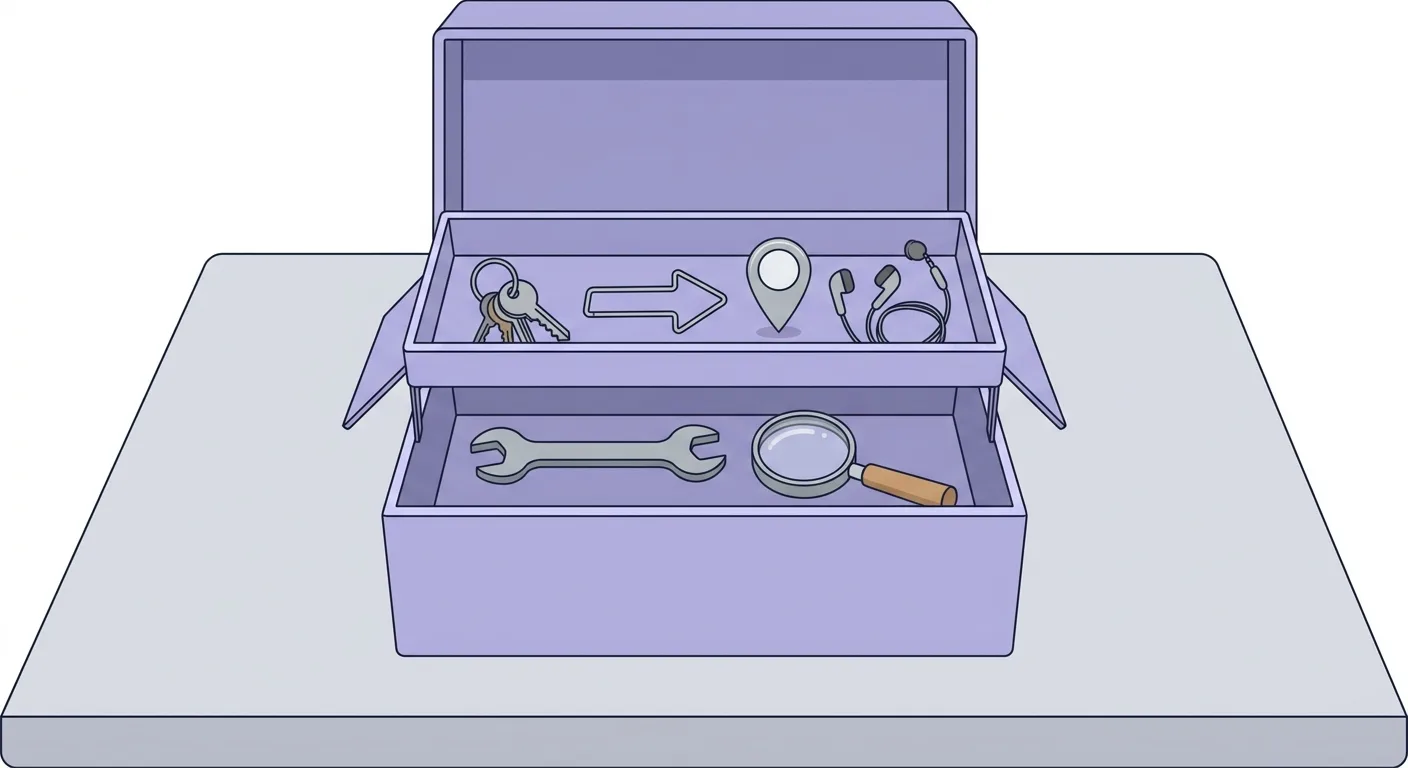 Caption: The free version already has the basic tools; Premium adds redirects, multiple keyphrases, Local SEO, and 24/7 support.
New in 2026, Yoast SEO AI Abilities: Letting AI Agents Change SEO Settings
In 2026, Yoast launched Abilities, which lets AI tools read and change a single post's core technical SEO settings through the Abilities API introduced in WordPress 6.9. The integration page states: "Read access, core SEO field updates, revert, and bulk operations are all included in Yoast SEO at no extra cost." (Yoast Abilities integration page, accessed 2026-10-20)
In plain terms, you can ask an AI tool to check whether a post is set to noindex, or even have it change the canonical for you. The noindex help page also says Abilities can read and update a single post's noindex setting.
Two things to know first, though:
- It takes technical setup: the integration page FAQ states that connecting to the WordPress Abilities API is a technical task, which you or a developer on your team will most likely handle
- The focus keyphrase is still set by a person: the integration page states "Your focus keyphrase stays read-only". AI can read it but not change it
Which fields can be changed, how the release and test versions differ, and how to undo a wrong change (undo comes with conditions), we cover in a separate article: Yoast SEO Abilities: editable fields and undo limits.
Also AI-related is llms.txt. The beginner's guide gives its settings location as Yoast SEO > Settings > AI Features. For what llms.txt is and what to put in it, see our llms.txt setup guide.
FAQ
Is the free version of Yoast SEO enough?
For a single blog or brand website, the free version is usually enough: focus keyphrase analysis, XML sitemaps, Schema, and noindex don't cost anything. Consider Premium if you need redirect management, up to 5 keyphrases, Local SEO, or 24/7 support. As shown on Yoast's site on 2026-10-20, it's US$9.90 per month, billed annually at US$118.80 (excluding tax).
Do all-green Yoast SEO traffic lights guarantee rankings?
No. Yoast's official beginner's guide states that getting all-green lights "in no way guarantees that it will rank", and that not every light has to be green to rank. Yoast also stresses that keyword research and site structure come before the traffic lights. Treat the lights as a pre-submission checklist, not a ranking guarantee.
Does Yoast SEO support analysis in Chinese?
Yoast's pricing page FAQ says the analysis works in more than 20 languages, and asks users to check the official language list for which ones are currently covered. Whether your site's language is included, go by the latest version of that list. Also, Yoast's length recommendations are in English units, so Chinese-language sites shouldn't apply the numbers directly.
Can Yoast SEO be installed alongside other SEO plugins?
We recommend against it. Yoast's sitemap help page says that if a sitemap isn't generated by Yoast, you should first disable other sitemap plugins and use FTP to delete physical sitemap files, then enable Yoast's sitemap. Keeping just one SEO plugin per site is the simplest setup. For how to choose among the three plugins, see our WordPress SEO plugin comparison.
How many sites does one Yoast SEO Premium subscription cover?
One subscription covers one site or domain. If you have several sites, buy several subscriptions and choose the quantity at checkout; bulk purchases get a discount. If you manage 100 or more client sites, Yoast has dedicated agency licensing. The official FAQ also says you can transfer the subscription to a staging site in MyYoast.
After Setting Up Yoast SEO, Where to Put Your Effort Next
The basic Yoast SEO setup is roughly done once you've run the setup wizard, turned on the sitemap, and checked noindex once. After that, the sitemap updates itself as you add or delete content (Yoast help: XML sitemaps, accessed 2026-10-20), so you don't need to watch it every day. Just do these 4 things every month:
- Confirm the sitemap is still working: open View the XML sitemap for a quick look, and check Google Search Console for errors
- Check for new noindex settings: if anyone changed the Advanced tab, make sure no important page got hidden by mistake
- Update cornerstone posts: use the stale cornerstone content filter to find key posts that haven't been updated in too long
- Check the lights once before each new post goes out: handle red lights and Problems first, and fix orange lights when you have time
A plugin is just a tool. What really decides rankings is whether the content answers what readers are asking, whether the data has sources, and whether the site structure is clear. No traffic light can check any of that for you.
Our approach is to put the content on the client's own website. The plugin takes care of the technical side, so the content has a clearly structured home that search engines and AI can understand.
🎯 A Plugin Is Just a Tool. Content and Structure Decide Rankings
Once Yoast is set up, the next step is making the posts themselves worth finding in search and worth citing by AI. AI SEO Hacker can look after both your Yoast settings and your articles, from keyword planning to writing paragraphs AI can understand. Tell us about your site.
Further Reading
- Yoast SEO Abilities: Letting AI Agents Change SEO Settings Directly
- WordPress SEO Plugins Compared: Yoast, AIOSEO, Rank Math
- Sitemap SEO Guide
- Technical SEO Checklist
- Schema Structured Data Guide
![WordPress SEO Plugins: Yoast vs AIOSEO vs Rank Math [2026]](/_next/image?url=%2Fblog%2Fimages%2Fseo-tools%2Fwordpress-seo-plugins-compared-01.webp&w=3840&q=75)
![Bing Webmaster Tools Guide: Verify, Sitemaps, AI [2026]](/_next/image?url=%2Fblog%2Fimages%2Fseo-tools%2Fbing-webmaster-tools-guide-01.webp&w=3840&q=75)
![Yoast SEO Abilities: AI Agents Edit SEO Settings [2026]](/_next/image?url=%2Fblog%2Fimages%2Fseo-tools%2Fyoast-ai-agent-abilities-01.webp&w=3840&q=75)